Ergonomic office design follows this principle by creating workspaces that support comfortable working positions, natural movement and regular breaks. “There is virtue in work and there is virtue in rest. Use both and overlook neither.” It focuses on designing around people’s needs rather than forcing them to adjust to unsuitable furniture.
Ergonomic office design means setting up office furniture, equipment, lighting, and layouts to reduce strain and support daily work. Whether you’re planning a home office or a corporate workplace, good ergonomics starts with knowing the people who use it.
Why Does Ergonomic Office Design Matter?
An attractive office isn’t necessarily a comfortable one. A desk may look perfect but be too high for typing. A chair may be expensive but provide inadequate support.
Good workplace ergonomics focuses on:
- Comfort: Supporting the body during daily tasks.
- Posture: Reducing unnecessary bending, twisting and reaching.
- Movement: Allowing regular changes in position.
- Visibility: Making screens and documents easy to read.
- Flexibility: Adapting workstations to different users.
The goal: Create a functional workspace that fits both the person and the task.
What Are the 7 Basic Rules of Office Ergonomics?
These ergonomic guidelines provide useful starting points. Individual adjustments may be necessary.
Ergonomic Rule
What to Follow
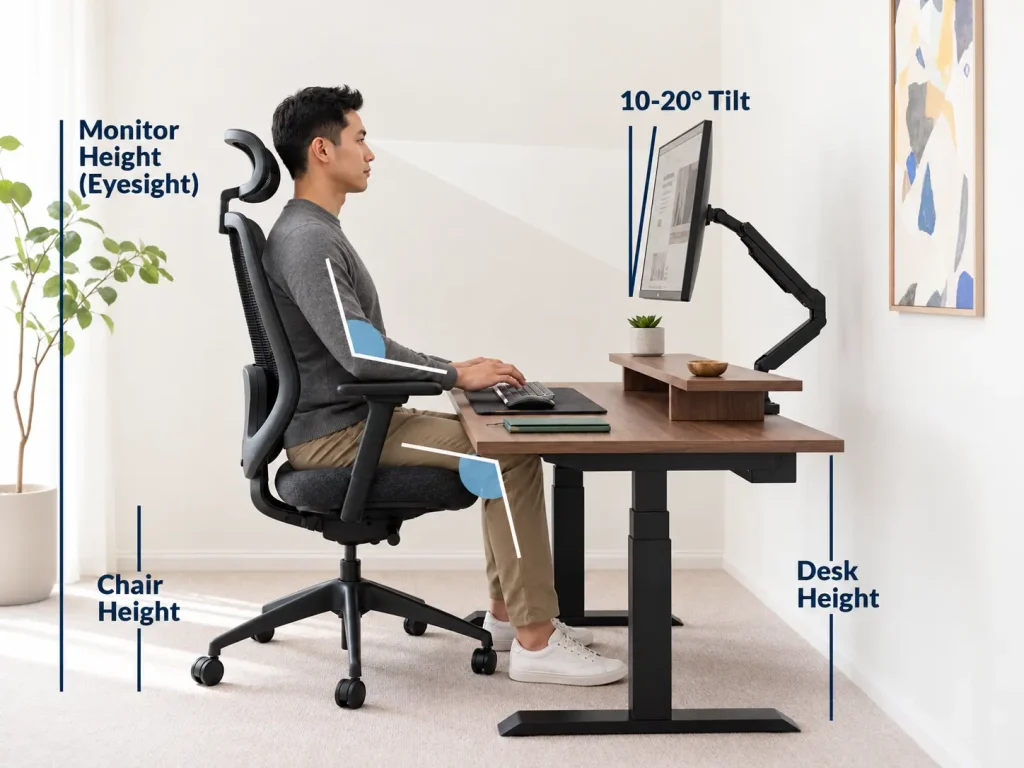
Elbow position
Approximately 90–120°, with relaxed shoulders
Monitor distance
Around 50–100 cm from the eyes
Screen height
Top of monitor at or slightly below eye level
Wrist position
Keep wrists approximately straight while typing
Foot support
Feet flat on the floor or supported by a footrest
Legroom
Enough space beneath the desk to change position
Movement
Change posture and take regular short breaks
One important principle: There is no perfect posture to maintain all day. Comfortable positioning and regular movement work together.
What Physical Discomfort Are You Facing at Your Desk?
An unsuitable workstation setup can cause lower back ache, neck stiffness, wrist strain, and eye fatigue.
Before purchasing new ergonomic furniture, check the possible contributing factors.
Physical Concern
Possible Workstation Issue
First Adjustment
Lower back ache
Inadequate chair support
Adjust seat and lumbar support
Neck stiffness
Monitor too low
Raise or reposition the screen
Wrist fatigue
Keyboard or mouse too far away
Bring input devices closer
Shoulder tension
Desk too high
Check elbow and arm position
Eye fatigue
Glare or small text
Adjust lighting and screen settings
Leg discomfort
Restricted legroom
Clear space and support the feet
Example: If you frequently lean forward to read a screen, check the viewing distance and text size before replacing your chair.
A qualified healthcare professional should assess persistent pain, numbness, or tingling. Ergonomic changes cannot treat every cause of discomfort.
Fixed-Height vs Sit-Stand Desk: Which Is Better?
Both desk types can support an ergonomic office setup. The right choice depends on your body dimensions, working routine and equipment.
Fixed-Height Desk
Best for: A dedicated workstation where the desk height suits the user.
A fixed desk can work well with an adjustable chair, suitable keyboard position and adequate legroom.
Check first: Can you type without raising your shoulders?
Adjustable Sit-Stand Desk
Best for: Shared workstations or users who want to alternate between sitting and standing.
Height adjustment offers more flexibility, but standing continuously is not automatically healthier.
Which Desk Should You Choose?
Your Requirement
Recommended Approach
Existing desk fits comfortably
Keep the fixed-height desk
Multiple employees share one desk
Consider an adjustable desk
Want to change between sitting and standing
Sit-stand desk
Limited budget
Improve chair and equipment positioning first
Use large or multiple monitors
Prioritise desktop depth
Practical advice: Test the desk with your actual keyboard, screen and chair before buying.
Home Office or Corporate Workplace: What Changes?
The same ergonomic principles apply, but the interior design priorities differ.
Home Office Ergonomics
A home office usually needs to support one person’s equipment and daily routine.
Laptop only? Use an external keyboard and mouse for prolonged work.
Limited space? Choose compact furniture and vertical storage.
Video meetings? Pay attention to lighting and background noise.
Main priority: A comfortable workstation without unnecessary furniture.
Corporate Office Ergonomics
A larger workplace requires an office layout that supports different employees and activities.
Workplace Zone
Ergonomic Design Priority
Individual workstations
Desk depth, chair support and monitor positioning
Collaborative spaces
Flexible seating and accessible equipment
Meeting rooms
Screen visibility and acoustic privacy
Shared facilities
Clear circulation and accessible storage
Breakout spaces
Comfortable seating away from active workstations
Planning sequence: People → Tasks → Furniture → Layout → Lighting.
This human-centred office design approach avoids selecting furniture before understanding employee requirements.
What Furniture or Equipment Do You Already Have?
You may not need a complete office renovation to improve workplace comfort.
Start with your existing equipment.
Laptop: Consider a stand and separate keyboard for prolonged use.
Single monitor: Position directly ahead at a comfortable height.
Dual monitors: Centre the primary screen or position equally used screens close together.
Standard desk: Review keyboard height, desktop depth and legroom.
Office chair: Check height adjustment, back support and seat depth.
Paperwork: Use a document holder near the monitor to reduce repeated neck movement.
Buying tip: Adjust what you already own before investing in additional ergonomic office accessories.
How Can You Address Specific Physical Issues at Work?
A workstation assessment helps identify which part of the setup needs attention.
The Four-Step Ergonomic Assessment
- Identify
Which task is uncomfortable—typing, reading, sitting or using a mouse?
- Observe
Look for raised shoulders, forward leaning, twisted wrists or restricted movement.
- Adjust
Change one relevant element, such as chair height, monitor position or keyboard placement.
- Review
Test the adjustment during normal work and check whether comfort improves.
Example: If dual-monitor use causes repeated neck turning, adjust screen placement before considering new furniture.
How to Plan an Ergonomic Office Interior
Effective ergonomic workplace design begins during planning, not after furniture installation.
Step 1: Understand Employee Requirements
Identify team size, job responsibilities, working hours, equipment and accessibility needs.
Step 2: Select Suitable Workstations
Test desks, chairs, monitor placement and available legroom before finalising specifications.
Step 3: Plan the Office Layout
Separate focused work, collaboration, meetings and break areas where practical.
Step 4: Coordinate Lighting and Acoustics
Control screen glare, provide suitable task lighting and consider speech privacy.
Step 5: Choose Practical Materials
Use appropriate desk finishes, comfortable edges, accessible storage and durable furniture.
Step 6: Test the Setup
Evaluate a sample workstation with actual equipment before furnishing the entire office.
Design insight: Test a workstation before installation. It can reveal problems that are hard to fix after fitting furniture.
Is Your Workspace Ergonomic? A Quick Checklist
Use this simple office ergonomics checklist:
- Shoulders remain relaxed when typing.
- Monitor is readable without leaning forward.
- Feet rest comfortably on the support.
- Keyboard and mouse are within easy reach.
- Legs can move freely beneath the desk.
- Lighting does not create distracting screen glare.
- The workspace allows regular movement.
If something doesn’t feel right, review that area first. This is a general self-check, not a formal ergonomic assessment.
Common Ergonomic Office Design Mistakes
Common Mistake
Better Solution
Choosing furniture only for appearance
Test comfort and adjustability
Using identical settings for everyone
Allow individual workstation adjustments
Ignoring monitor distance
Provide suitable desk depth
Poor screen orientation
Coordinate daylight and artificial lighting
Overcrowding workstations
Maintain clear circulation and legroom
Treating standing desks as a complete solution
Encourage changing positions
Buying furniture without testing
Check a sample setup first
How Can Group DCA Support Ergonomic Workplace Planning?
At, workplace interior planning considers how furniture, lighting, circulation, storage and different office activities function together.
An effective office layout should balance employee comfort with practical requirements such as teamwork, privacy and efficient space use.
Businesses planning new offices or renovations can explore Group DCA for workplace layout and interior planning.
Frequently Asked Questions
What is the main purpose of ergonomic office design?
To create workspaces that fit users and their tasks while reducing unnecessary physical strain and supporting comfortable working conditions.
What is the ideal ergonomic desk height?
No universal measurement exists. The desk should allow relaxed shoulders, comfortable elbow positioning and sufficient legroom.
How far should an office monitor be from the eyes?
Approximately 50–100 cm is a useful starting range. Adjust for screen size, readability and personal vision needs.
Are ergonomic chairs necessary?
Suitable chair support and adjustability are important. A comfortable workstation also depends on desk height, equipment placement, and movement.
Do standing desks improve productivity?
They provide opportunities to change position, but they do not guarantee improved productivity or eliminate discomfort.
Can a small office have an ergonomic layout?
Yes. Even compact offices can benefit from properly positioned equipment, adjustable seating, practical storage and clear movement space.
Conclusion
Ergonomic office design is about creating a workspace that fits the people using it.
Comfortable seating. Correct equipment placement. Practical layouts. Regular movement.
By combining ergonomic furniture, thoughtful office planning and individual adjustments, businesses can create more functional and comfortable work environments.